



Create a booking by hand
For a phone call or an email enquiry. Pick the product and date, add the people, decide who pays, and choose what gets sent.
Voyant Support
Most bookings arrive on their own from your website. This is for the ones that come by phone or email.
Click Bookings, then New booking.
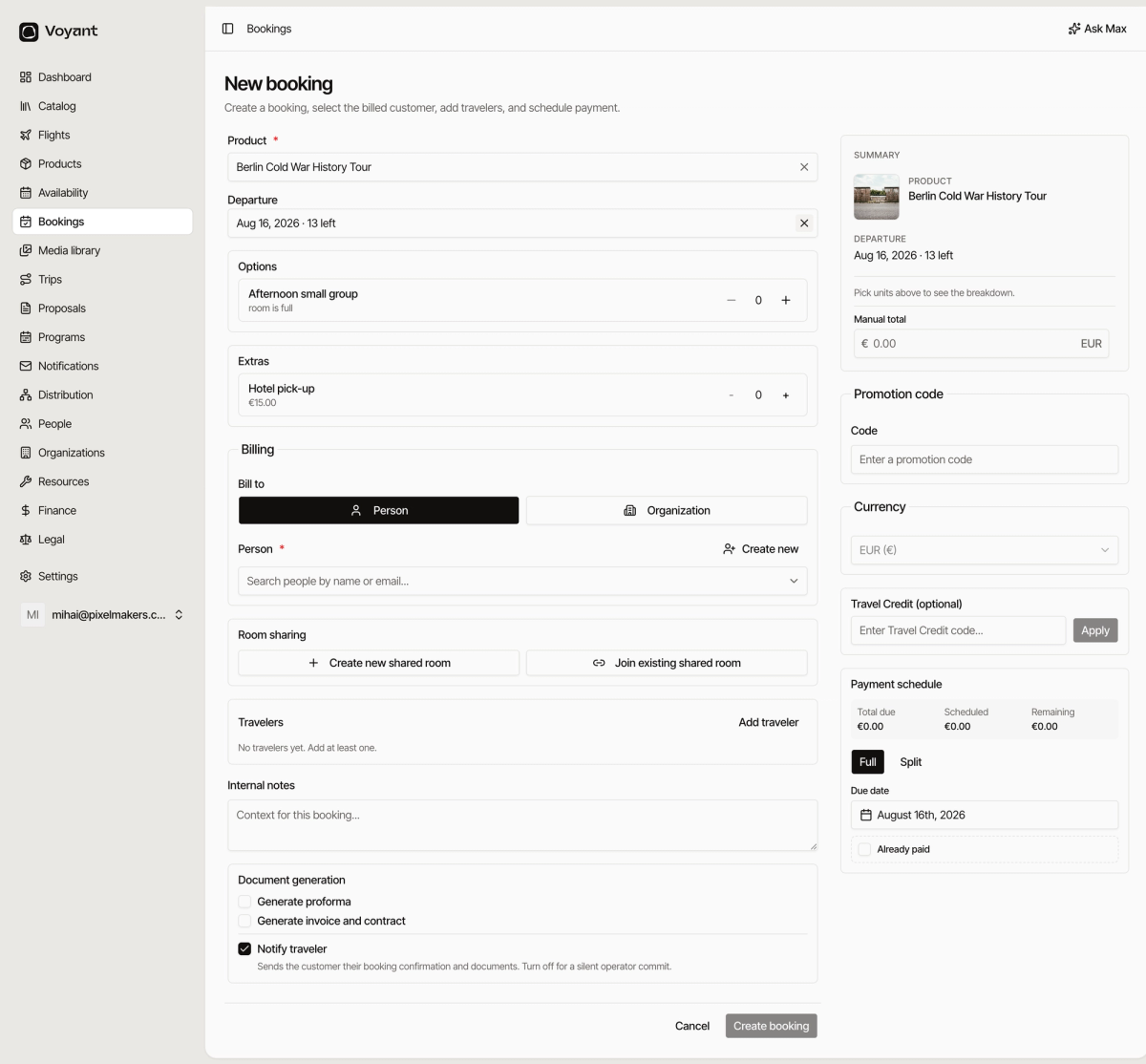
1. What they are buying
- Choose the Product.
- Choose the Departure. Each one shows how many places are left, such as "Aug 16, 2026 · 13 left".
- Under Options, set how many of each. This is where you say two adults and one child.
- Under Extras, add anything optional they want, such as hotel pick-up.
2. Who is paying
Under Billing, choose Person or Organization.
Search for them by name or email. If they are new, click Create new and add them without leaving the form.
3. Who is going
Click Add traveler for each person. You need at least one.
If several travelers are sharing a room, use Create new shared room, or Join existing shared room to put them with people already booked.
4. What gets sent
Under Document generation:
- Generate proforma creates a proforma invoice, for when they need to pay before you invoice properly.
- Generate invoice and contract creates the real documents.
- Notify traveler emails the customer their confirmation and documents. Turn it off for a silent booking that you will follow up yourself.
5. The money
The right rail handles payment.
- Promotion code applies a discount.
- Travel Credit applies credit the customer already holds.
- Payment schedule is Full for one payment, or Split for a deposit and a balance.
- Due date is when you expect the money.
- Already paid marks it as settled if they have paid you on the spot.
Then click Create booking.
Did this answer your question?
Thanks for your feedback.