



Add a one-off date
Add a single extra departure that is not part of your repeating schedule, for a group booking or a busy weekend.
Voyant Support
Your schedule covers the normal week. Sometimes you need one extra date on top, such as a private group on a day you do not usually run.
Steps
- Click New Slot at the top right.
- Choose the Product.
- Choose the Option, if the product has more than one.
- Set the Date, then Starts At and Ends At.
- Check the Timezone is the local time where it happens.
- Set Status to Open.
- Set Initial Pax to how many people you can take.
- Click Create Slot.
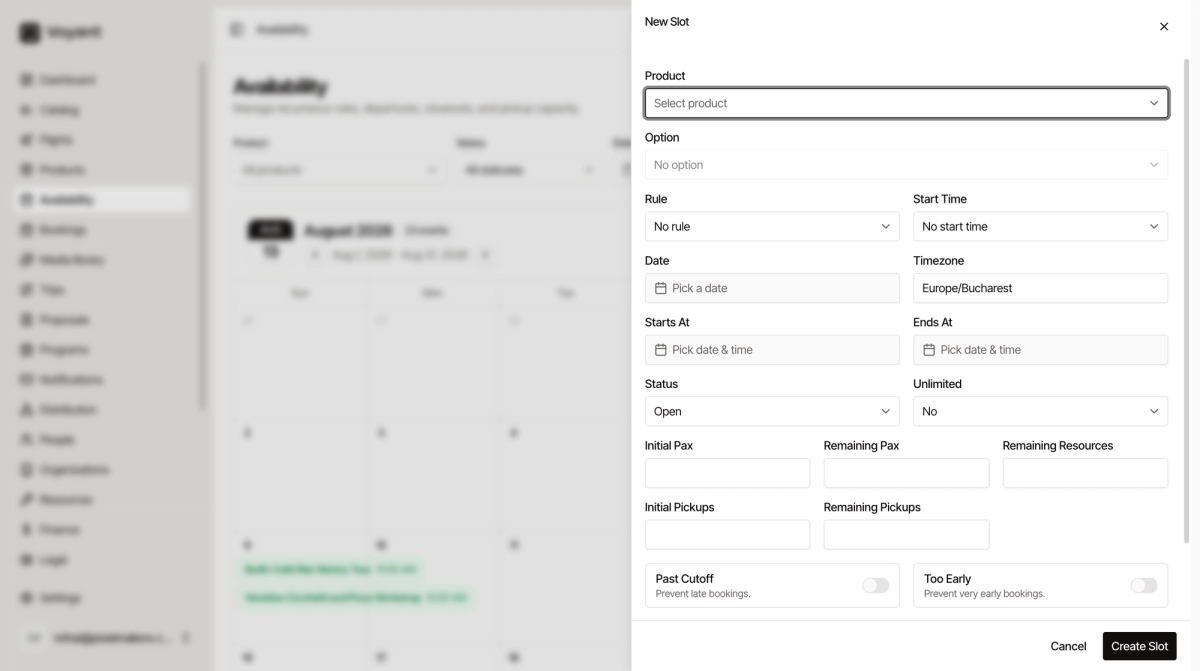
Leave Rule empty
Rule links the date to a repeating schedule. For a genuine one-off, leave it as No rule. The date will sit alongside your scheduled ones and behave the same way.
When to use a schedule instead
If you are adding the same extra date week after week, stop and put it in the product schedule instead. See Departures and recurring schedules.
Did this answer your question?
Thanks for your feedback.