



Record a payment
Money that arrived outside Voyant, such as a bank transfer or cash, has to be entered by hand. Here is how, and what each field is for.
Card payments through your website record themselves. Everything else you enter yourself.
A bank transfer lands, someone pays cash at the desk, a company settles an invoice. All of those need recording, or the booking will look unpaid forever.
Steps
- Open the booking and go to Payments.
- Click Record payment.
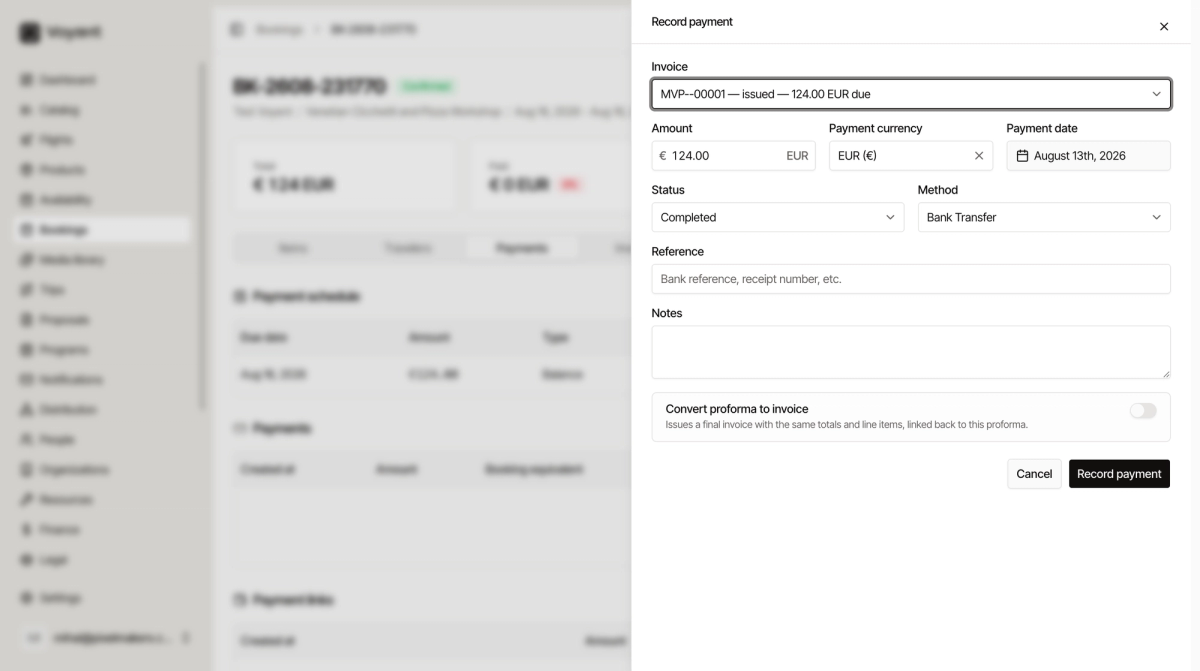
- Check the Invoice it is settling. Voyant preselects the open one and shows how much is due.
- Check the Amount. It fills in with the outstanding figure, so change it only for a part payment.
- Set the Payment date to when the money actually arrived, not today.
- Choose the Method.
- Paste a Reference, such as the bank reference or receipt number.
- Click Record payment.
The methods
Bank Transfer, Credit Card, Debit Card, Cash, Cheque, Wallet, Direct Bill, Travel Credit and Other.
Direct Bill is for agents or companies you invoice on account. Travel Credit is credit the customer already held with you.
Status
- Completed is the normal one. The money is yours.
- Pending is for a transfer you can see coming but that has not cleared.
- Failed records an attempt that did not work.
- Refunded marks a payment that has since gone back.
Convert proforma to invoice
A toggle at the bottom. A proforma is a request for payment, not a tax document. Once the customer has paid, they usually need a real invoice.
Turn this on and Voyant issues a final invoice with the same totals and line items, linked back to the proforma. It saves raising one by hand.
Did this answer your question?
Thanks for your feedback.