



Reading and exporting a report
Set the period, switch currencies, and take the whole thing out as CSV, Excel or PDF.
Open any report from the list.
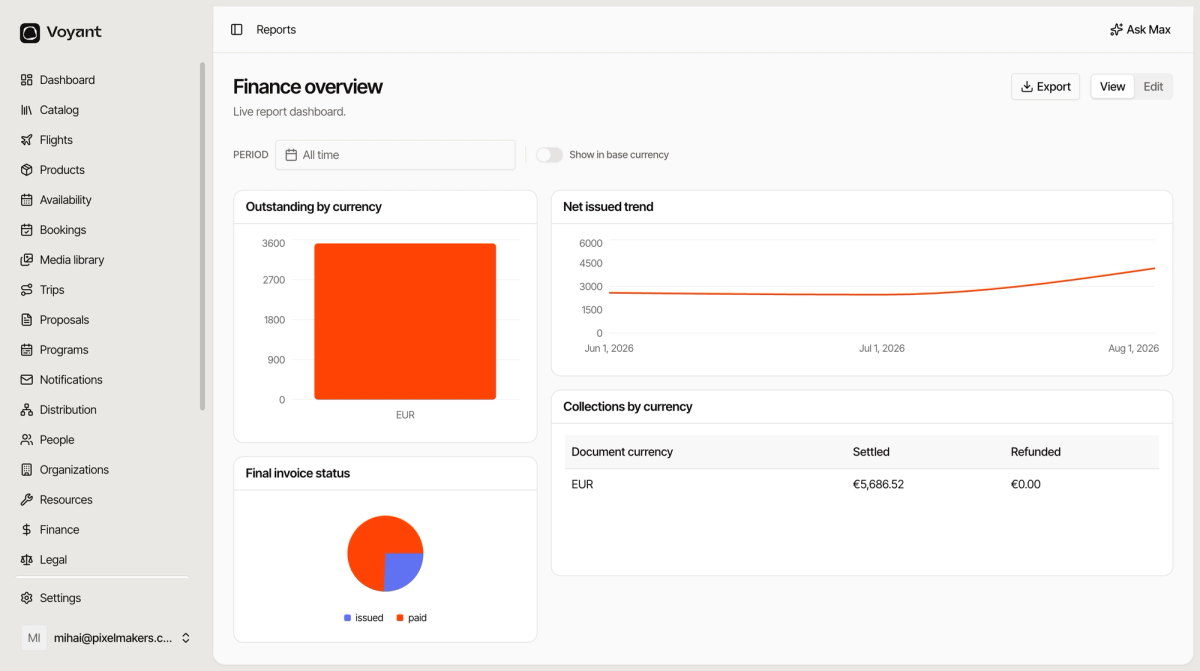
Period
The PERIOD picker at the top sets the date range for the whole report. Change it once and every widget re-runs.
It defaults to All time, which is right for a first look and misleading for a trend. Narrow it to a quarter before drawing conclusions.
Show in base currency
Off, each currency is kept separate, so an EUR figure and a RON figure sit in different rows. On, everything is converted into one currency and added up.
Keep it off when you are reconciling, because separate currencies are what your bank statement shows. Turn it on when somebody asks how much the business took in total.
View and Edit
View is the reading mode. Edit lets you add, move, resize and remove widgets. See Add widgets to a report.
Export
Export offers three formats.
- CSV, for a spreadsheet.
- Excel, same but keeps formatting.
- PDF, for sending to somebody who just wants to read it.
PDF is the one to use for a board pack or an accountant. CSV is the one to use when you want to do more sums.
The numbers come from live data
A report reads whatever is in the system right now. If your supplier invoices are not entered, or bookings are sitting unconfirmed, the report shows that reality rather than correcting for it.
Did this answer your question?
Thanks for your feedback.