



Checking what went out
Preview shows what reminders would send on a date. Deliveries shows what actually did, and whether it arrived.
Two screens answer the two questions people ask about automated messages: what is going to happen, and what did.
Preview
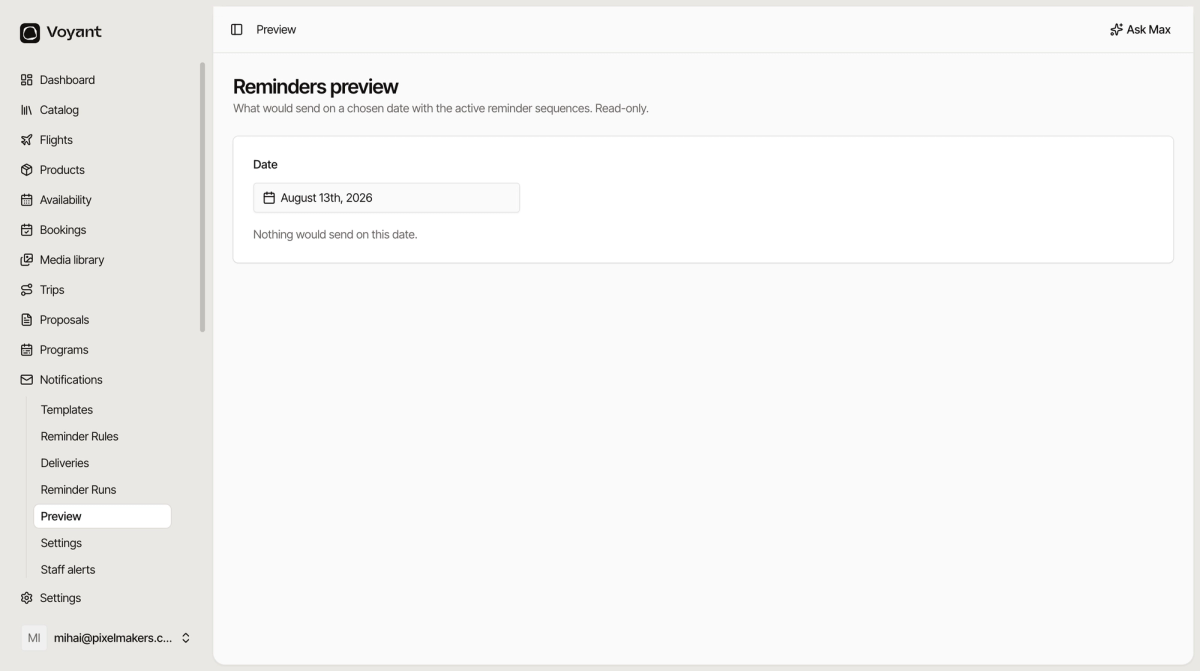
Notifications then Preview shows what would send on a chosen date with the active reminder sequences. It is read-only, so nothing goes out.
Pick a date and it lists what would fire. If it says nothing would send, either no rules are active, no bookings match, or your dates are wrong.
This is how you check a new rule before switching it on, rather than testing on real customers.
Deliveries
Notifications then Deliveries records every attempt, the rendered message, and what the provider said back.
Filter by channel and status. This is where you go when a customer insists they never received something.
- If there is no delivery record, the message was never generated. Check the template is active and the rule is switched on.
- If there is a record but it failed, the provider rejected it. The reason is usually a bad address or a blocked number.
- If it sent successfully, it left Voyant. At that point it is a spam folder question.
Reminder runs
Reminder Runs shows each time the reminder system executed, which is useful for confirming it is running at all rather than diagnosing one message.
Recent deliveries per template
Each template also has its own Recent deliveries tab, which is quicker when you already know which message you are chasing.
Did this answer your question?
Thanks for your feedback.