



Open, closed, sold out and cancelled
A date has one of four statuses. Only Open can be booked. Here is when to use each of the others.
Every date carries one of four statuses. You can see them all in the Status filter at the top of the list.
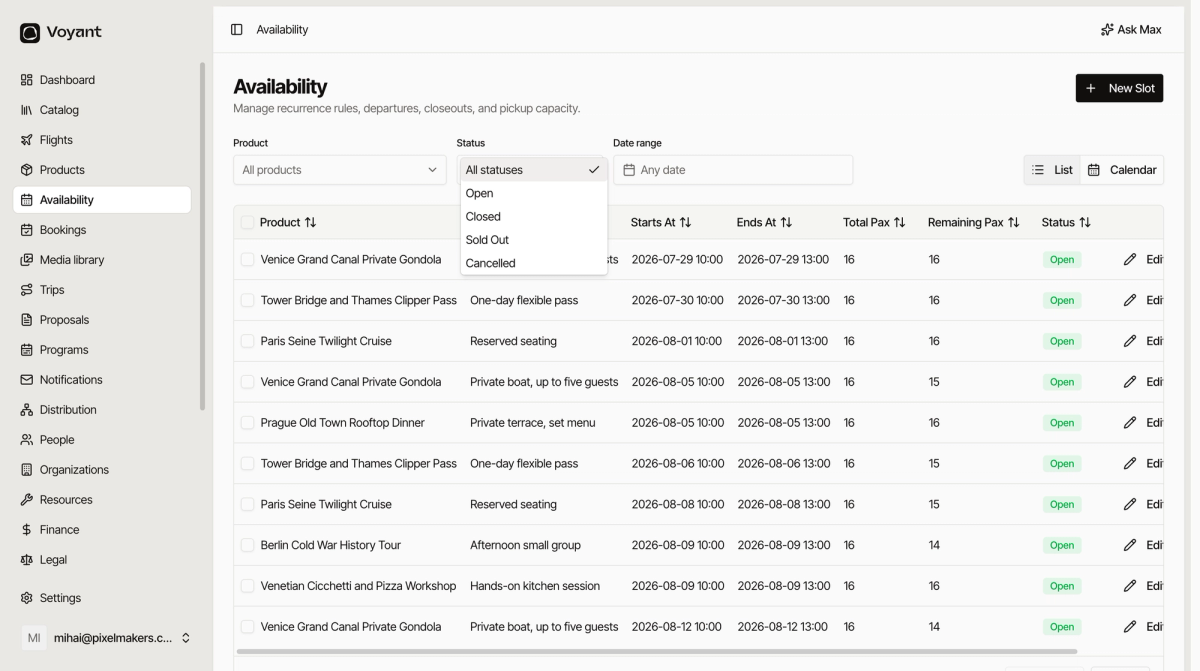
Open
The date is on sale. Customers can book it while places remain.
Closed
You have stopped selling it, but nothing is wrong with it. Existing bookings stand.
Use it for a date you are holding for a private group, or one you do not want sold online yet.
Sold Out
There are no places left.
This usually sets itself when the last place goes. Set it by hand when you have filled a date somewhere else, such as over the phone.
Cancelled
The departure is not running.
Use it when you call the day off, for weather or too few bookings. Anyone already booked needs contacting, so check Bookings before you cancel.
Change one date
- Find the row.
- Click Edit.
- Change Status.
- Click Save Slot.
To change several at once, see Change many dates at once.
Did this answer your question?
Thanks for your feedback.