



Change many dates at once
Closing every Friday in November one row at a time is slow. Select them and change the status in a single step.
Voyant Support
Tick boxes down the left of the list to work on several dates together.
Steps
- Filter the list so it holds the dates you want. Filtering first is what makes this quick.
- Tick the box on each row, or tick the box in the header to select everything showing.
- A bar appears at the top saying how many are selected.
- Choose the new status from Change status.
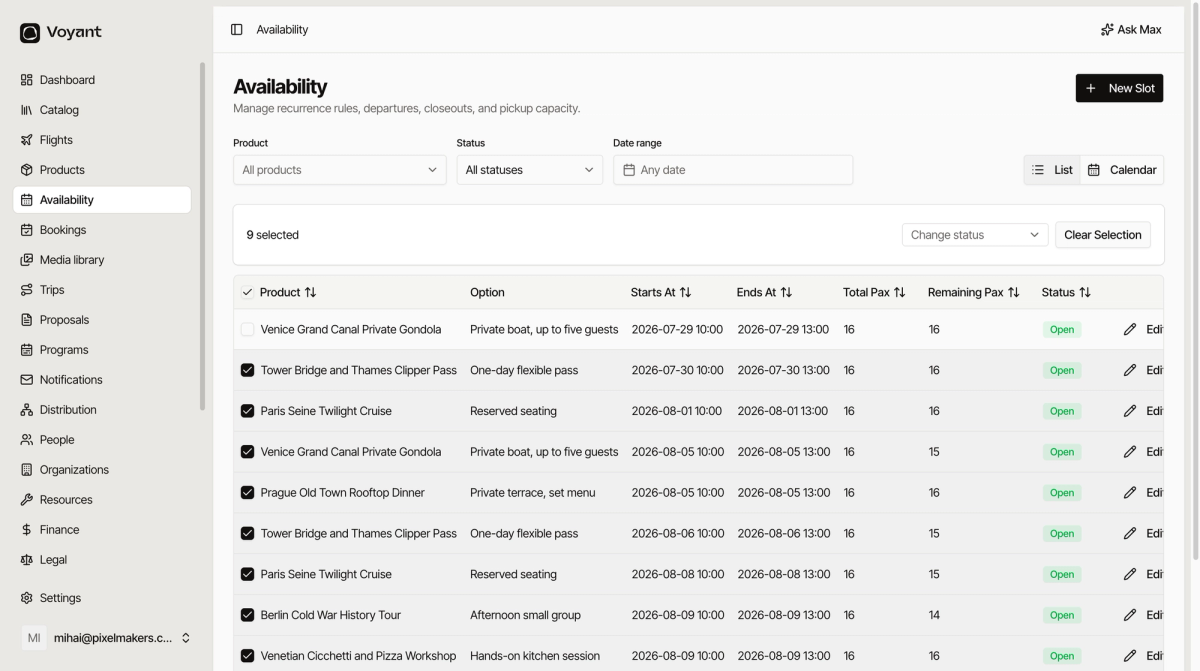
Click Clear Selection to start again without changing anything.
A worked example
You are closing the whole first week of December for staff training.
- Set Date range to 1 to 7 December.
- Tick the header box to select every row showing.
- Set Change status to Closed.
Did this answer your question?
Thanks for your feedback.