



Allocation: rooms, vehicles and seats
Decide where each traveler physically goes. Add a coach or a room, then place people in it, or let Voyant place everyone at once.
Selling a place and having somewhere to put the person are two different things. Allocation is the second one.
Three kinds of place
The sub-tabs split by what you are assigning.
- Rooms groups travelers into rooms or other shared accommodation. Use it for stays and multi-day trips.
- Vehicles groups them by the coach, minibus, aircraft or vessel carrying them.
- Seats assigns each traveler an exact seat inside a vehicle.
Most day tours only need Vehicles. A coach trip with assigned seating needs Vehicles and then Seats. A multi-day trip with hotels needs Rooms.
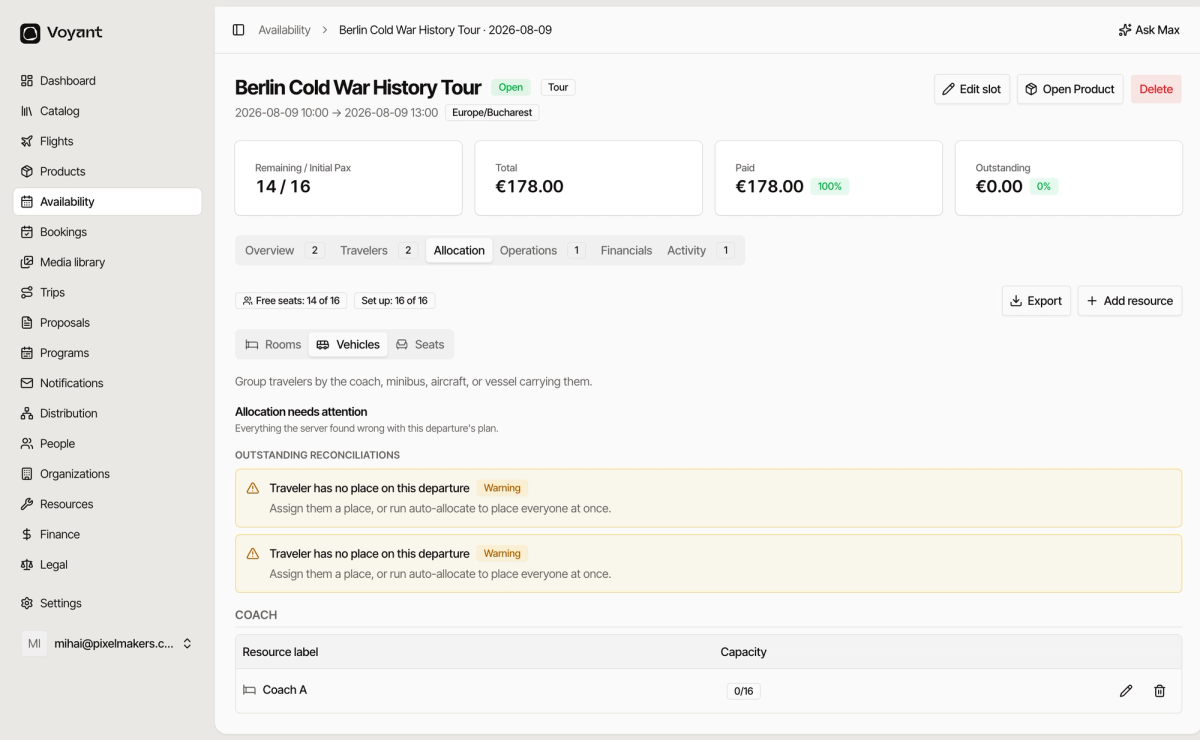
The two counters
- Free seats is places not yet sold, for example 14 of 16.
- Set up is places you have physically laid out, for example 16 of 16. If this is 0, nobody can be seated.
Add a resource
A resource is the thing people go in. A coach, a room, a boat.
- Click Add resource.
- Choose Create a new one for this departure, or Attach one from the fleet to reuse a vehicle you already manage.
- Leave Tied to option as Unassigned unless this resource only serves one product option.
- Type a Resource label, such as "Coach A" or a room number.
- Set the Capacity.
- Click Create resource.
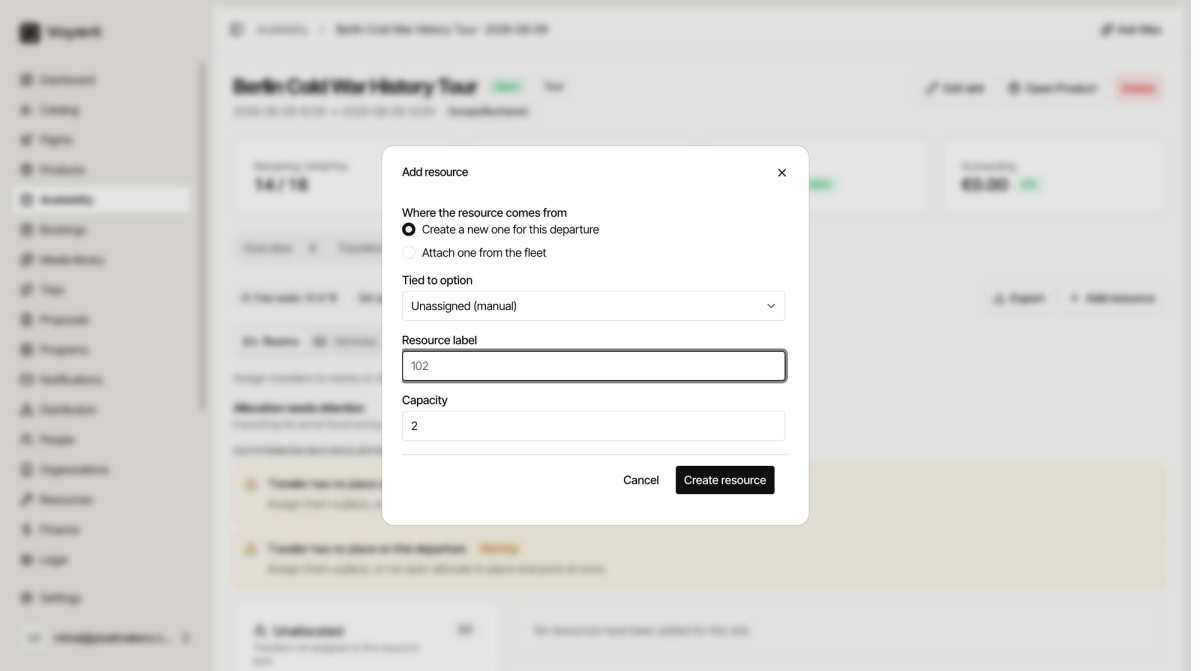
If you type a capacity bigger than the date can hold, a warning appears telling you by how much. That is a guard against seating more people than you sold places to.
Place the travelers
Anyone without a place appears under Unallocated, with their name and booking reference.
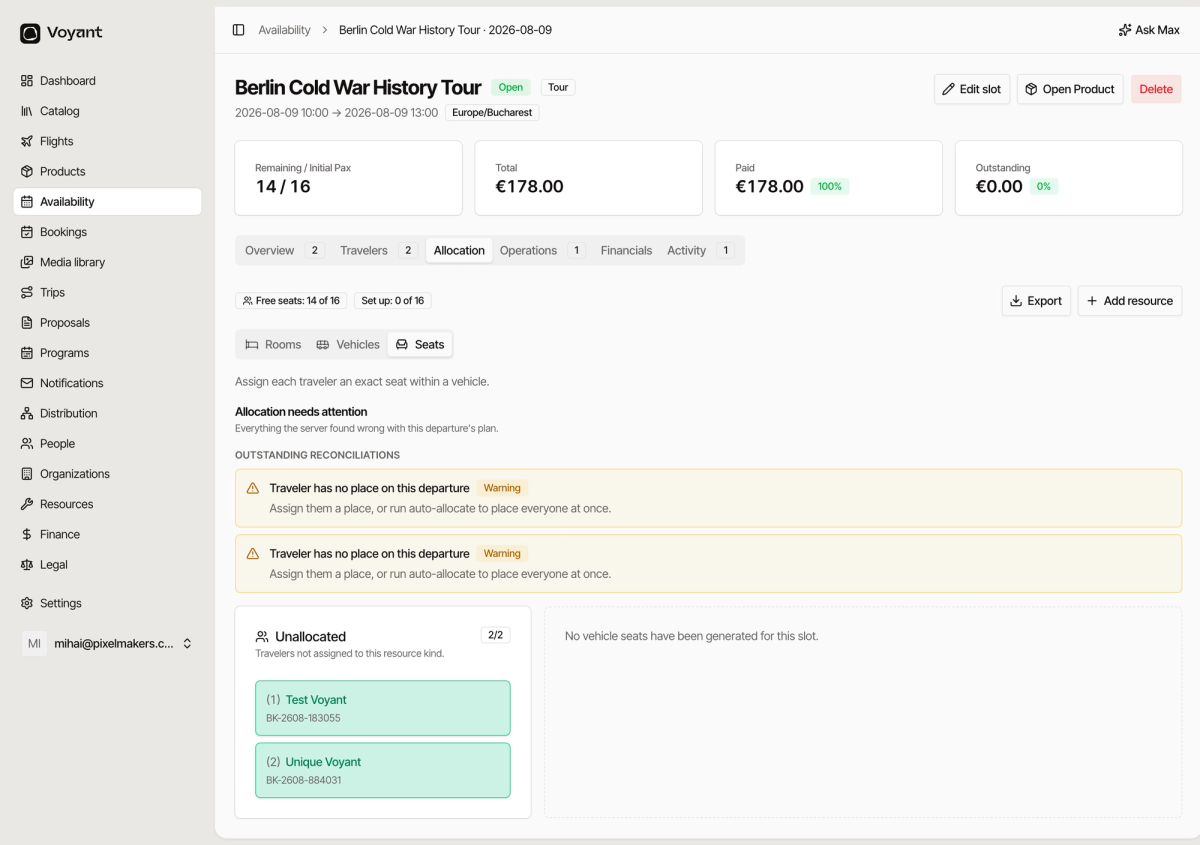
You can assign people one at a time, or use auto-allocate to place everyone in one go. The warnings in Allocation needs attention offer that as their suggested fix.
Export
Click Export to download the allocation. This is what you hand to a driver or a hotel, so they know who is in which vehicle or room.
Edit or remove a resource
Each resource row has a pencil to rename it or change its capacity, and a bin to remove it. Removing a resource unseats anyone in it, so place them somewhere else first.
Did this answer your question?
Thanks for your feedback.