



Set a customer payment policy
How much a customer pays at booking and when the rest is due. Five settings, with a live preview so you can see the result before you save.
The payment policy decides how much a customer pays at booking and when the rest is due.
It is what turns a 1,000 EUR trip into "300 now, 700 a month before you go".
Inheriting is the default
Every product starts with Inherit from parent switched on, and the badge reads Inheriting.
That means the product follows the next broadest rule you have set. Voyant looks up a chain: the category, then the supplier, then your organisation default.
Leave it on wherever you can. One change to your organisation default then updates every product at once.
Setting your own
Switch Inherit from parent off and the badge changes to Custom. Five settings appear.
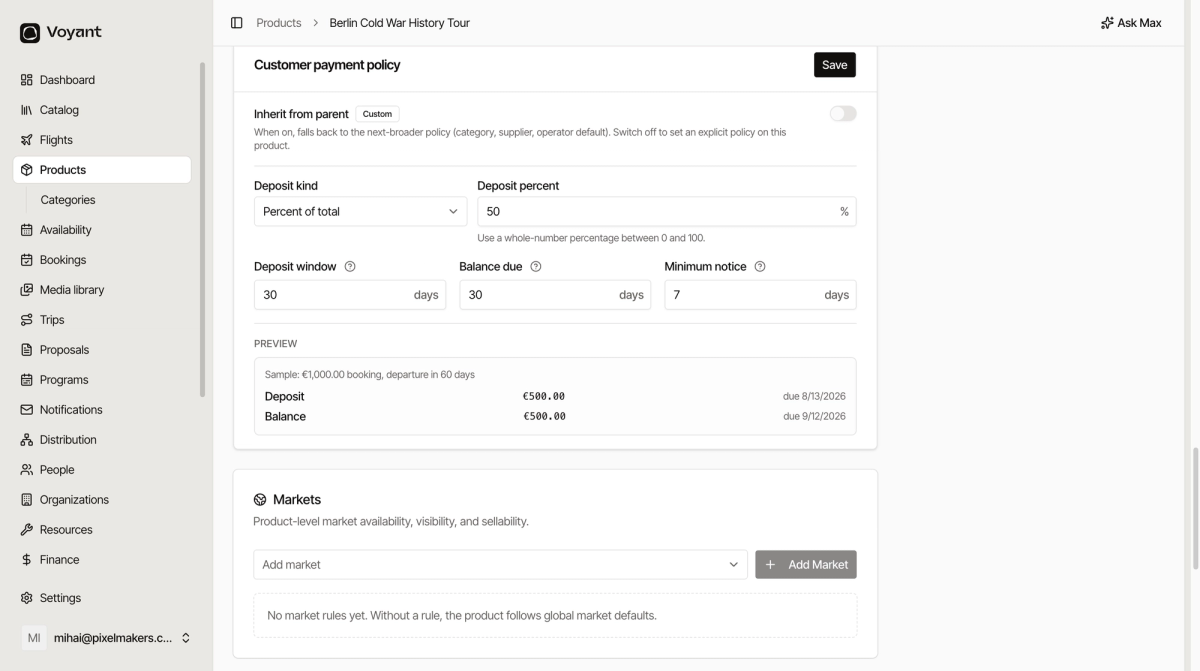
Deposit kind
How the deposit is worked out.
- None means no deposit. The whole amount is due as one payment.
- Percent of total takes a share of the booking value. The usual choice.
- Fixed amount takes the same sum regardless of booking size, for example 100 EUR per booking.
Deposit percent
Only appears when the kind is Percent of total. A whole number between 0 and 100.
Deposit window
How many days the customer has to pay the deposit before it is considered overdue.
Balance due
How many days before departure the rest must be paid. Set 30 and the balance falls due a month before they travel.
Minimum notice
The cut-off close to departure. Inside this window the normal split stops applying, because there is no time to collect a balance.
With a minimum notice of 7 days, somebody booking five days before departure pays in full rather than leaving a balance that would fall due in the past.
Read the preview
Under PREVIEW, Voyant works a sample through your settings: a 1,000 EUR booking with departure in 60 days.
At 50 percent with a 30 day balance, it shows a 500.00 EUR deposit due today and a 500.00 EUR balance due 30 days later.
Change any number and the preview updates. Check it before saving, because it is far easier to spot a wrong figure here than on a real customer booking.
Steps
- Open the product and scroll to Customer payment policy.
- Switch Inherit from parent off.
- Set Deposit kind, then the deposit figure.
- Set Deposit window, Balance due and Minimum notice in days.
- Check the PREVIEW.
- Click Save.
What happens next
The policy is a rule. It produces the actual dated rows on a booking when that booking is confirmed. Those rows are the payment schedule, and you can see and adjust them per booking. See Payment schedules.
Did this answer your question?
Thanks for your feedback.