



Cost prices and margin
Record what a product costs you as well as what you sell it for, so your reports can show real profit.
Every product has two numbers. What the customer pays, and what it costs you to deliver.
- Sell Amount is what the customer pays.
- Cost Amount is what you pay out, for example the guide, the entry tickets and the boat hire.
The difference is your margin. Voyant can only report on your margin if you fill in the cost.
Set the cost when you create a product
The New product form has both Sell Amount and Cost Amount. Fill in both if you know them.
Change costs on an existing product
- Open the product and scroll to Booking options and prices.
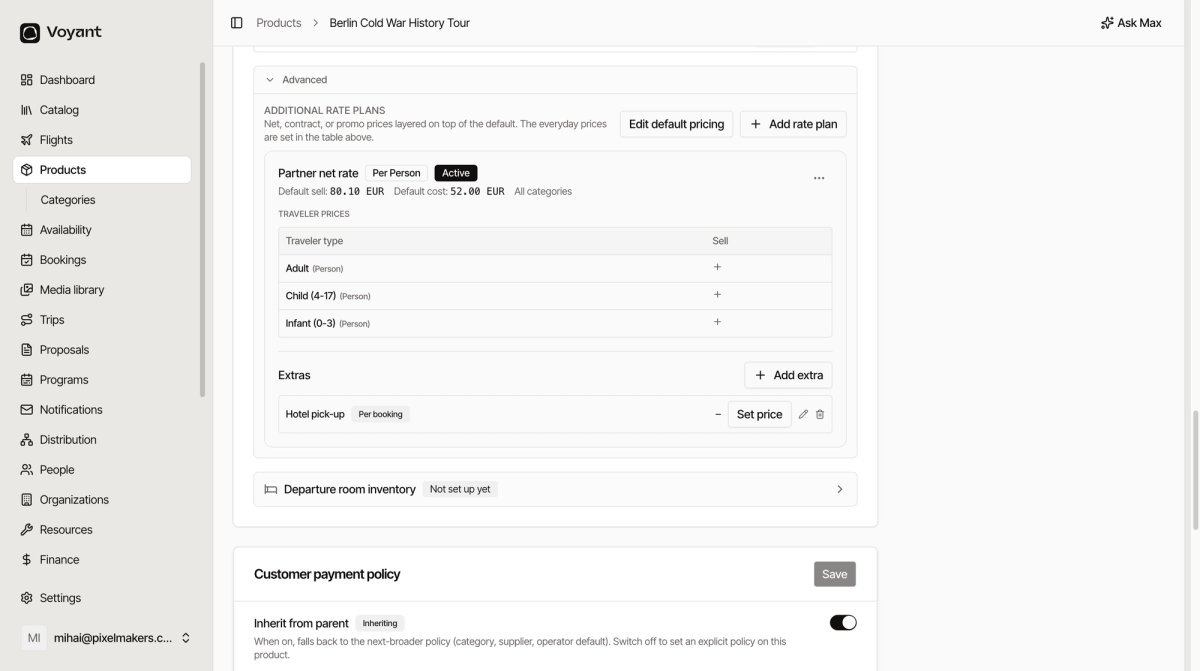
- Expand Advanced.
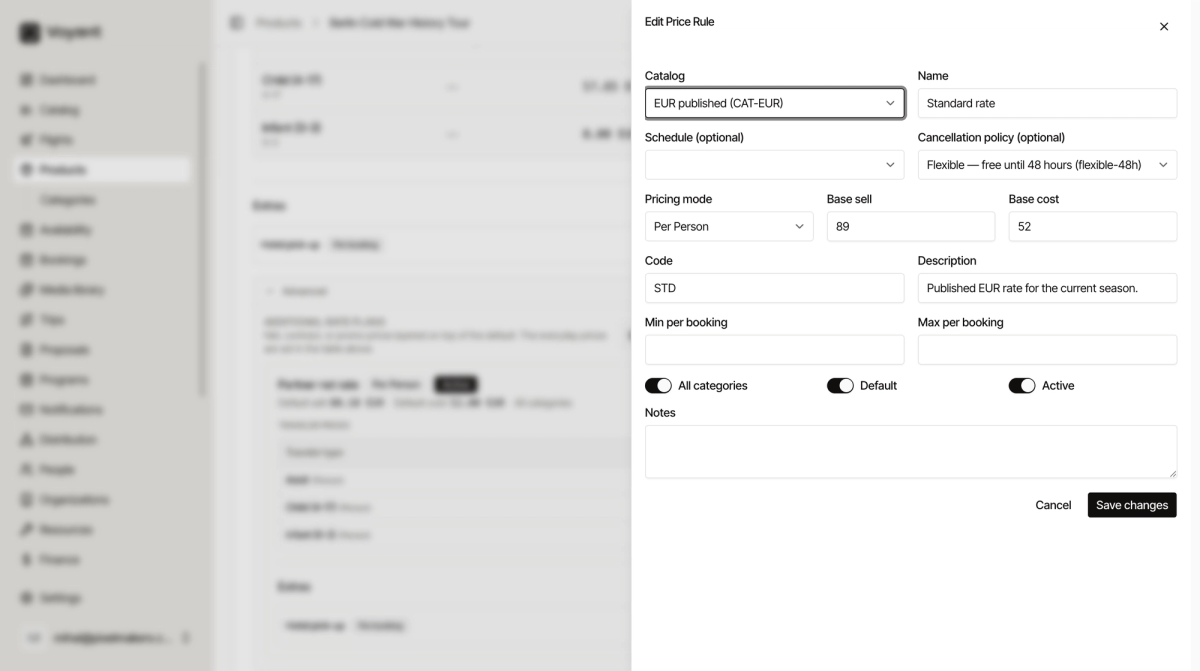
- Click Edit default pricing to change the everyday sell and cost amounts.
Rate plans for special prices
Sometimes one product needs more than one price. A partner agency gets a net rate, or you run a summer promotion.
Click Add rate plan to layer another price on top of the default without disturbing your everyday prices. Each plan shows its own default sell and cost, so you can see the margin on that deal.
In the example above, "Partner net rate" sells at 80.10 EUR against a cost of 52.00 EUR, while the standard adult price is 89.00 EUR.
Keep costs current
When a supplier raises their rates, update the cost as well as the sell price. Otherwise your margin reports quietly drift away from reality.
Did this answer your question?
Thanks for your feedback.