



Reading a contract and its status
Draft, Issued, Sent, Signed, Executed, Expired and Void, plus what each panel on a contract tells you.
Open any contract from the list.
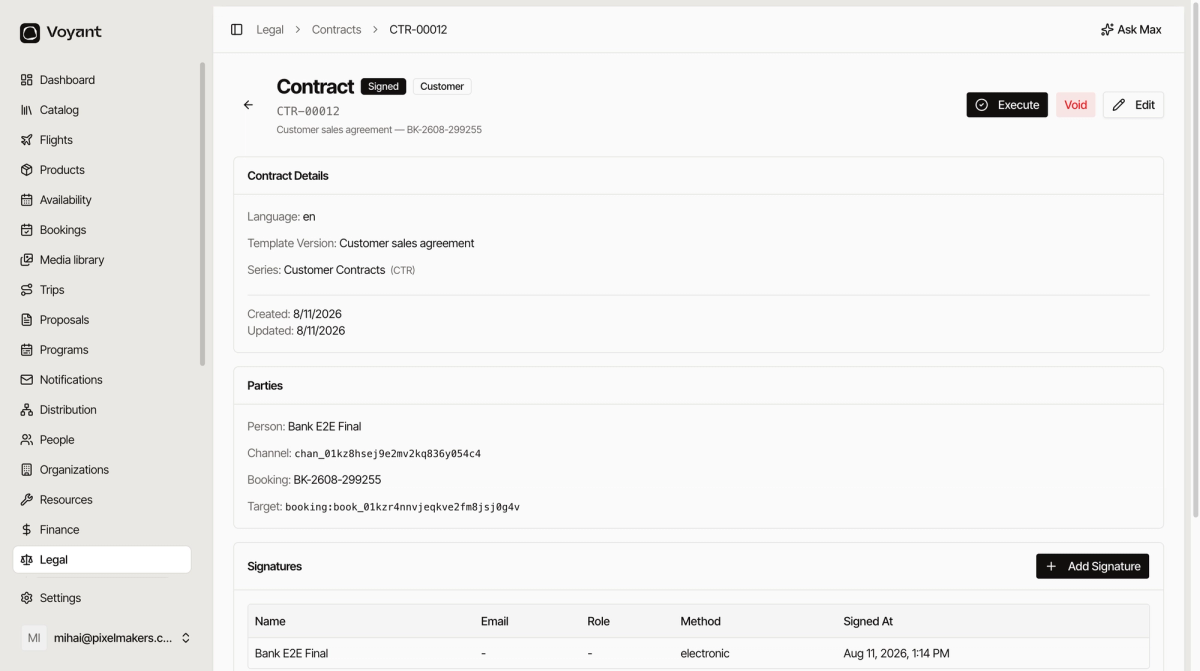
The panels
Contract Details
Language, the Template Version it was built from, and the Series its number came from. The template version matters: if you later change the template, this contract still shows the wording that was agreed.
Parties
Who the contract is between and what it covers. Person, Organization, Supplier, Channel, and the Booking it belongs to.
The booking link is the useful one. From a disputed contract you are one click from the trip, the payments and the traveller.
Signatures
Who signed, in what role, by what method, and when. Click Add Signature to record one taken outside the system, such as a scanned countersignature.
Documents
The generated PDF, plus anything else you attach with Add Document.
The seven statuses
- Draft, being prepared. Nothing has gone out.
- Issued, finalised and numbered.
- Sent, delivered to the other party.
- Signed, they have agreed.
- Executed, complete and in force. This is the end state.
- Expired, the expiry date passed before it was signed.
- Void, cancelled.
Execute and Void
Execute moves a signed contract to its final state. Void cancels it while keeping the record and the number.
Void rather than delete, for the same reason you never delete an invoice. The number sequence has to hold.
Did this answer your question?
Thanks for your feedback.