



Connect ChatGPT or Claude to your Voyant
Copy one address into your assistant and it can answer questions about your real bookings, products and customers. No developer needed.
You can already ask ChatGPT or Claude general travel questions. What you cannot do, out of the box, is ask them about your business.
Connecting your Voyant changes that. "How many people are booked on the Prague tour in September?" gets a real answer, from your data.
It takes about two minutes and you do not need a developer.
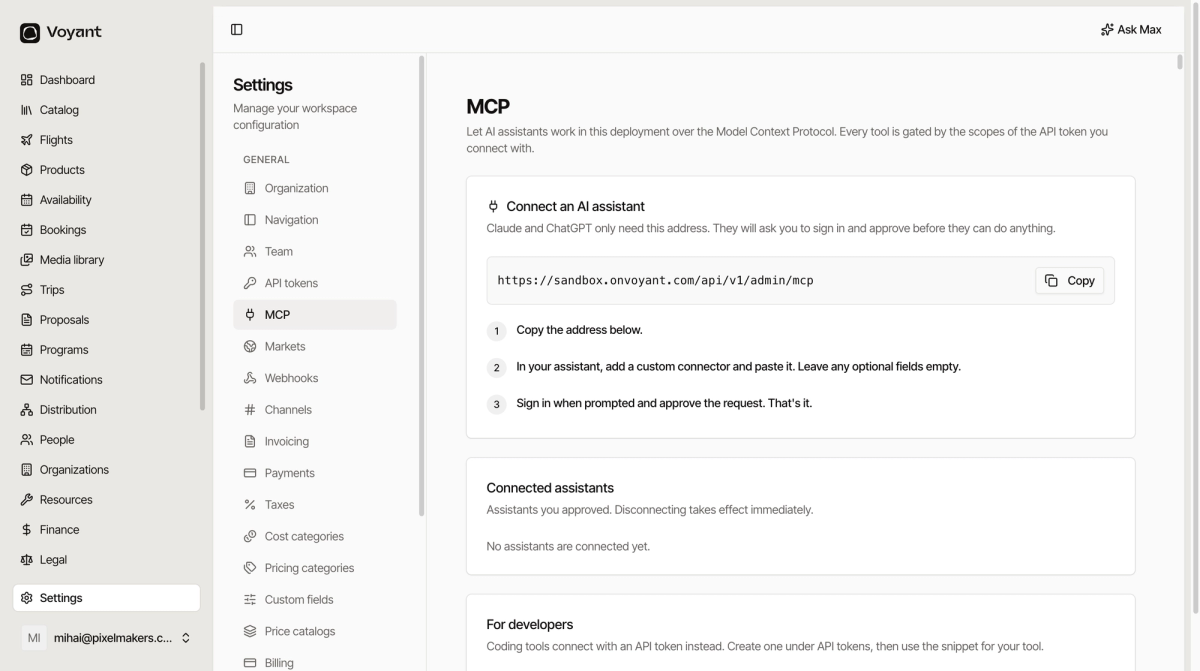
Get your address
Click Settings, then MCP. Click Copy next to the address. It looks like this, with your own workspace name in it:
https://yourname.onvoyant.com/api/v1/admin/mcpThat address is all Claude and ChatGPT need. There is no password to generate and no key to paste. You will be asked to sign in and approve when you connect.
ChatGPT
Available on ChatGPT plans that support connectors. If you do not see the option, your plan does not include it yet.
- Open ChatGPT and go to Settings.
- Find Connectors and choose to add one.
- Pick the option to add a custom connector or custom MCP server.
- Paste your address into the URL or server-address box.
- Give it a name you will recognise, such as "Voyant".
- Leave every other field empty. There is nothing else to fill in.
- Save, then start the connection. ChatGPT sends you to a Voyant sign-in page.
- Sign in and click Approve.
Back in ChatGPT, start a new chat and ask something only your business would know, such as "how many bookings do we have next month?"
Claude
- Open Claude and go to Settings.
- Find Connectors.
- Click Add custom connector.
- Paste your address.
- Name it "Voyant".
- Leave the optional fields empty.
- Click Add, then connect.
- Sign in on the Voyant page and click Approve.
Claude shows the connector with a tool count once it is working.
Other assistants
Any assistant that supports custom MCP connectors over HTTP works the same way: find where it adds a connector, paste the address, leave the rest blank, sign in when asked.
Assistants aimed at developers want an API token instead. See Connect a coding tool.
Managing what is connected
The Connected assistants panel on the MCP page lists everything you have approved. Disconnecting takes effect immediately, so if a laptop goes missing you can cut it off from here.
Nothing happens without your approval
An assistant can only do what the sign-in gave it, and anything destructive asks you to confirm first. It is not silently rearranging your bookings.
Did this answer your question?
Thanks for your feedback.