



Working with a single invoice
Line items, payments, credit notes and attachments, plus converting a proforma into a real invoice.
Open any invoice from the list.
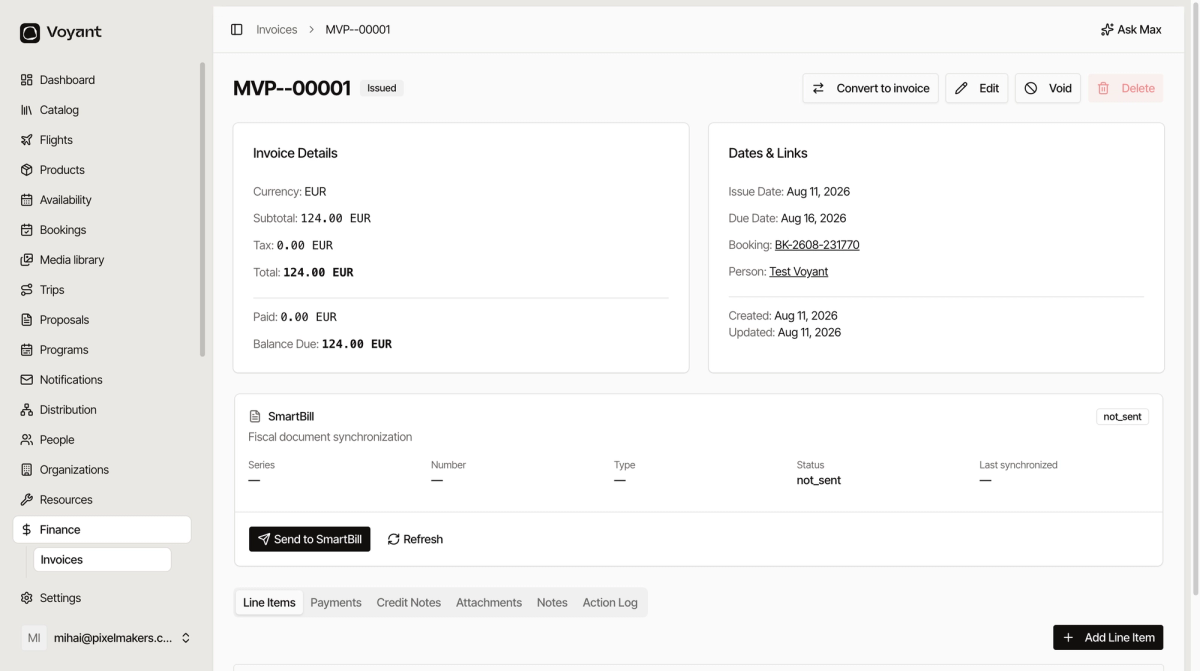
The two panels
Invoice Details holds the money: currency, subtotal, tax, total, paid and balance due.
Dates & Links holds the context: issue date, due date, and which Booking and Person it belongs to. Those links are how you get from an unpaid invoice back to the trip it is for.
The tabs
- Line Items, what is being charged for. Click Add Line Item to add a charge.
- Payments, money received against this invoice.
- Credit Notes, anything credited back.
- Attachments, supporting documents.
- Notes, internal comments.
- Action Log, the history of what happened to it.
Convert to invoice
A proforma shows a Convert to invoice button. Once the customer has paid, that issues a final invoice with the same totals and line items, linked back to the proforma.
This is the normal life of a leisure booking: proforma out, customer pays, convert, proforma goes Void and the invoice takes over.
Void
Void cancels the document while keeping it on record, so the number is used and the sequence stays unbroken.
Use Void for something raised in error. Use a credit note when a genuine sale is being reversed after the fact.
Did this answer your question?
Thanks for your feedback.