



The customer portal
Where your customers sign in to see their trips, documents and details, instead of emailing you to ask.
The customer portal is the page your customers sign in to. They see their trips, their documents and their own details, which cuts down the "can you resend my voucher" emails.
Click Settings, then Customer portal. Open portal shows you what customers see.
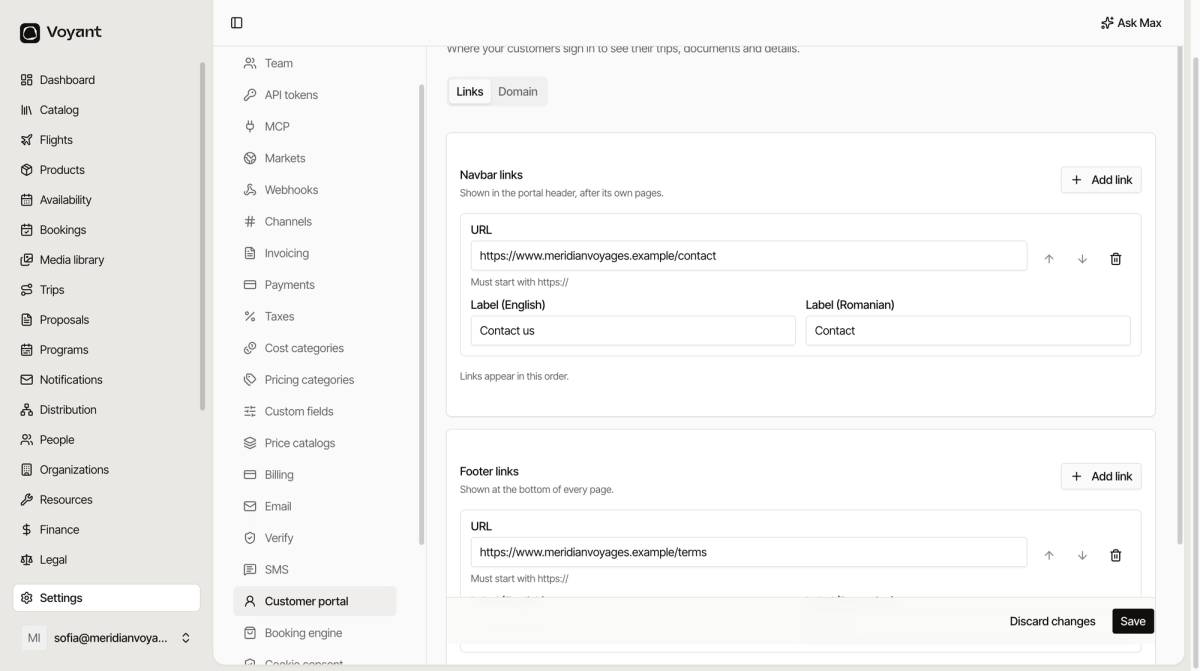
Links
The portal has its own pages already. These settings add yours alongside them.
- Navbar links appear in the header, after the portal's own pages.
- Footer links appear at the bottom of every page.
Click Add link, enter a URL starting with https://, then a label for each language you support. Use Move up and Move down to order them, and Remove to delete one.
Click Save when you are done, or Discard changes to back out.
What to link
Keep it short. Contact us, booking terms, and maybe a travel-advice page. The portal is somewhere people go to check a detail, not to browse.
Domain
As with the booking engine, you can put the portal on your own domain under the Domain tab. Until you do, it runs on an address ending onvoyant.net.
It uses your branding
Colours, fonts and logos come from Settings → Organization. You do not set them again here. See Brand appearance.
Did this answer your question?
Thanks for your feedback.