



Your team and their roles
Invite staff, choose between Member and Admin, and switch off access when somebody leaves.
Click Settings, then Team.
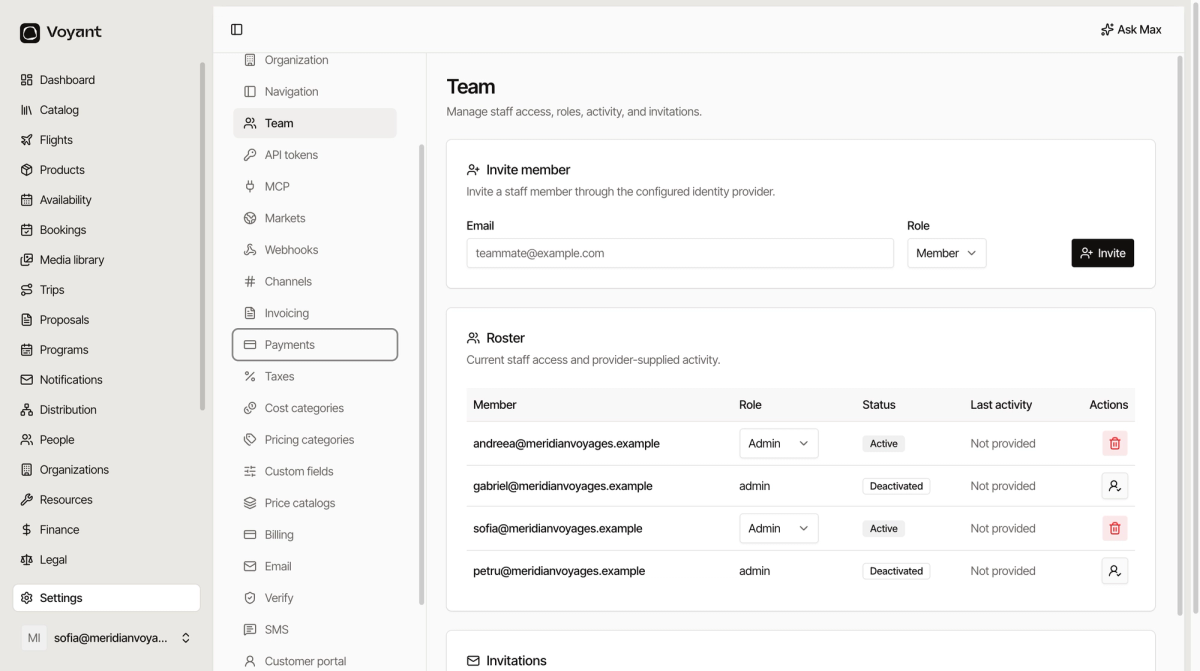
Invite somebody
- Type their Email.
- Choose a Role.
- Click Invite.
They get an invitation and sign in through your identity provider, so they use your company login rather than a separate Voyant password.
Pending invitations appear under Invitations, with the date they expire. Re-send from there if somebody misses it.
The two roles
- Member, day-to-day work: products, bookings, customers, availability.
- Admin, all of that plus Settings, Team and billing.
Give Admin to the people who should be able to change how the business is configured, not to everyone who needs to take a booking.
The roster
Status is Active or Deactivated. Last activity comes from your identity provider, so it can read "Not provided" depending on how yours is set up.
When somebody leaves
Deactivate them rather than deleting. Their bookings, notes and actions stay attributed, so the history still makes sense.
The icon at the end of a deactivated row reactivates them if they come back.
Did this answer your question?
Thanks for your feedback.