



Set up a multi-day itinerary
A worked example: a packaged trip that runs over several days, with a day-by-day plan and hotels included.
Voyant Support
An itinerary product is a trip that lasts several days, where you have planned what happens on each one.
Create it
- Go to Products and click New product.
- Name it after the trip, for example "Croatia Explorer 2026".
- Booking Mode: Itinerary.
- Product family: Tour.
- Capacity Mode: Limited, matching your coach or group size.
- Click Create product.
Build the days
On the product page find Itinerary and click Add Day for each day of the trip.
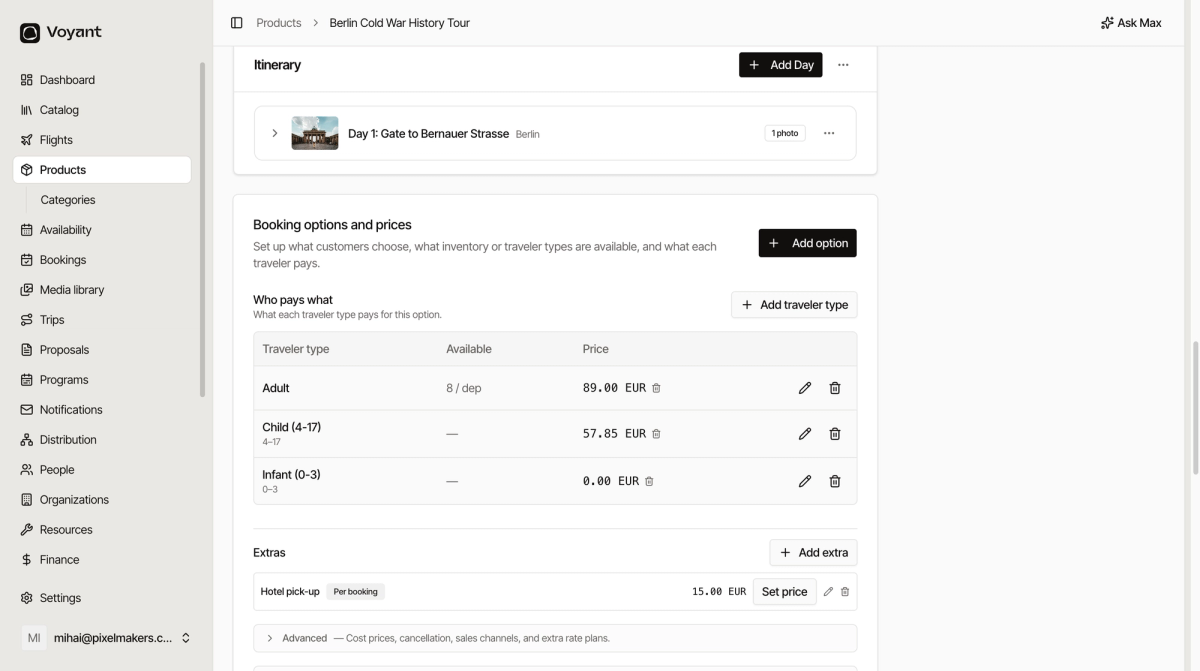
- Give the day a title, such as "Day 1: Arrival in Split".
- Set the place, so the day shows on a map.
- Describe what happens.
- Add a photo.
- Repeat for every day.
Once the days exist, Voyant works out the trip length for you. The Organize panel will show the duration as "From itinerary" rather than a number you typed.
Departures
Each departure is one running of the whole trip, so a departure that starts on 12 May and lasts eight days ends on 19 May. Add them under Departures, or set a recurring schedule if the trip runs to a regular pattern.
Did this answer your question?
Thanks for your feedback.