



Closeouts: taking something out of service
Block a coach for its service, a guide for annual leave, or a boat for a private charter, so nobody assigns it by mistake.
Assets are not always available. The coach goes for its annual service, the guide takes a holiday, the boat is chartered privately for a day.
A closeout blocks the asset for that period so nobody assigns it by accident.
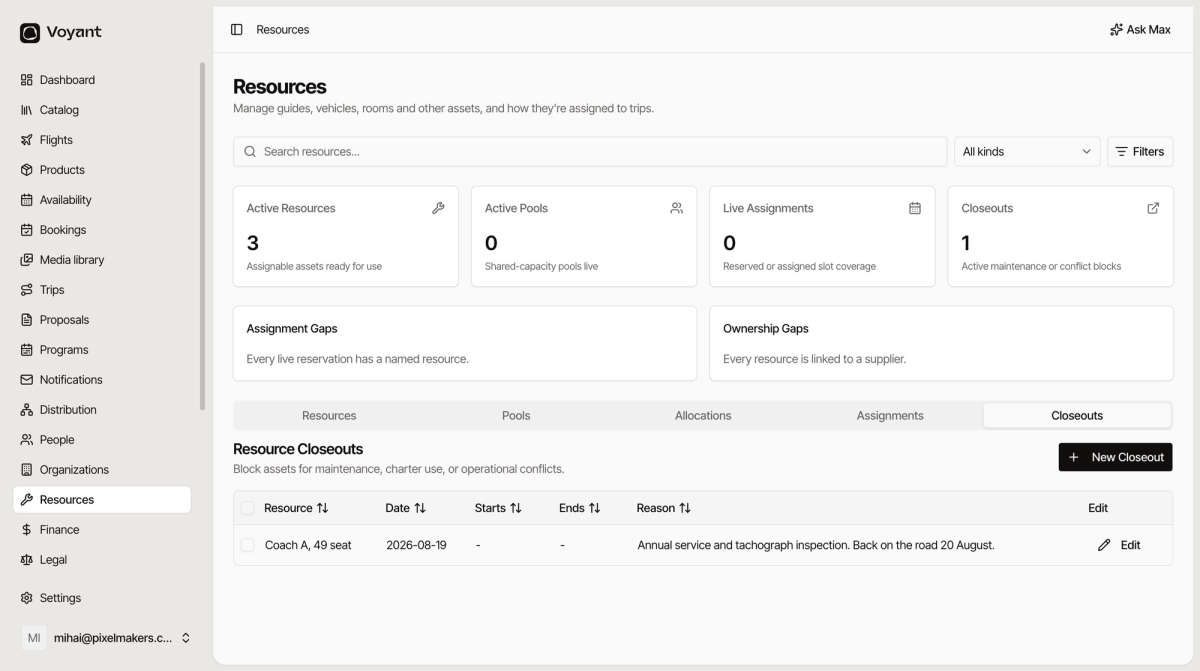
Create one
- Open Resources and go to the Closeouts tab.
- Click New Closeout.
- Choose the Resource.
- Pick the Date, and Starts At and Ends At if it is only part of the day.
- Write the Reason.
- Click Create Closeout.
Write a real reason
"Annual service and tachograph inspection. Back on the road 20 August" tells a colleague what is happening and when it ends.
"Unavailable" tells them nothing, and somebody will ring the depot to ask.
Part-day closeouts
Leave Starts At and Ends At empty to block the whole day. Fill them in when an asset is only out for part of it, such as a coach doing a school run each morning.
Closeouts on resources, closeouts on dates
These are different things and it is worth keeping them straight.
- A resource closeout takes an asset out of service. The date can still sell if another asset can cover it.
- A date closeout in Availability stops a departure selling entirely. See Open, closed, sold out and cancelled.
Blocking your only coach does not automatically stop the date selling. If the departure cannot run without it, close the date as well.
Did this answer your question?
Thanks for your feedback.