



Add a resource
Record each coach, guide or boat once, with its capacity, its supplier and the operational quirks worth knowing.
Voyant Support
Steps
- Click Resources, then New Resource.
- Choose the Supplier who provides it, or leave it as No supplier if it is yours.
- Choose the Kind.
- Give it a Name you will recognise on a list, such as "Coach A, 49 seat".
- Add a Code if you use fleet numbers, such as
VEH-COACH-A. - Set the Capacity.
- Write any Notes.
- Leave Active on so it can be assigned.
- Click Create Resource.
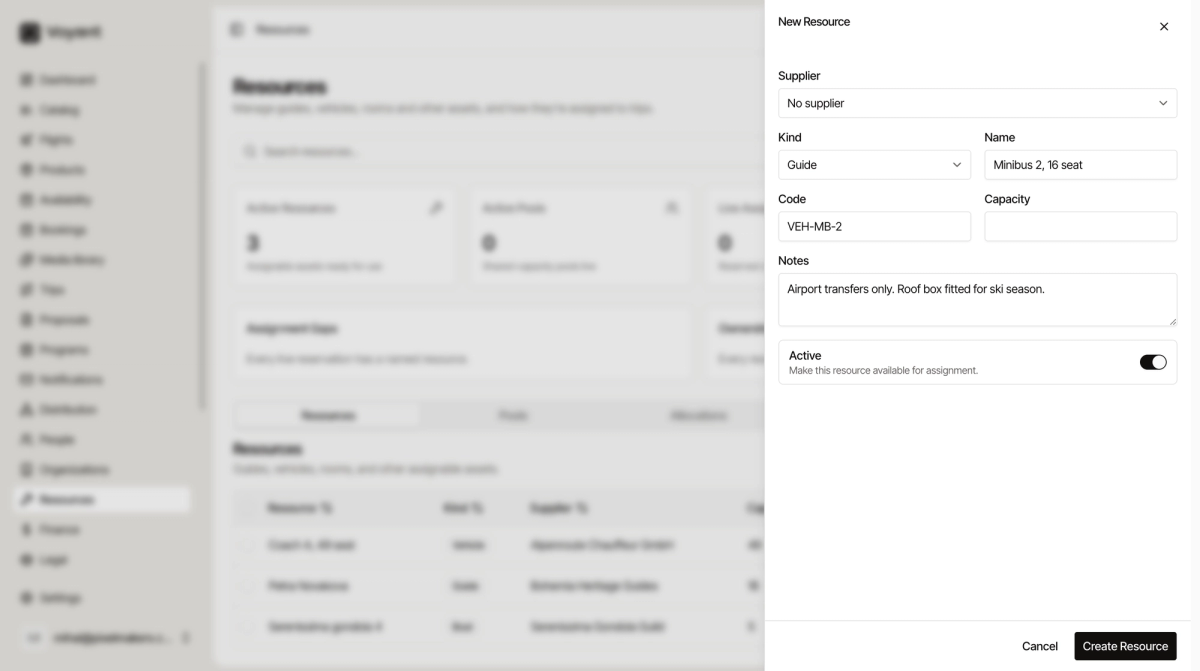
The six kinds
- Guide, a person leading the trip.
- Vehicle, coaches, minibuses and cars.
- Room, accommodation you assign people to.
- Boat, anything on water.
- Equipment, bikes, audio headsets and similar.
- Other, for anything that does not fit.
Name it the way you talk about it
"Coach A, 49 seat" is better than "Mercedes Tourismo 2019". On the day, somebody is scanning a list looking for the vehicle with enough seats.
Capacity is what makes it useful
A resource without a capacity cannot tell you whether it fits the group. Fill it in even when it seems obvious.
Notes are where the real knowledge lives
This is the field that pays for itself.
- "Wheelchair lift fitted. Needs 48 hours notice for airport runs."
- "Czech, English, German. Castle-district licence, valid to March 2027."
- "Airport transfers only. Roof box fitted for ski season."
Each of those stops somebody making a booking that cannot be delivered.
Active
Switch Active off rather than deleting when something leaves the fleet temporarily. Deleting loses the history of what it was used for.
Did this answer your question?
Thanks for your feedback.