



How your product looks in search and when shared
Control the title and description that appear on Google and when someone pastes your link into WhatsApp.
When someone finds your tour on Google, or pastes the link into a chat, they see a title, a description and an image. You control all three.
Where to set it
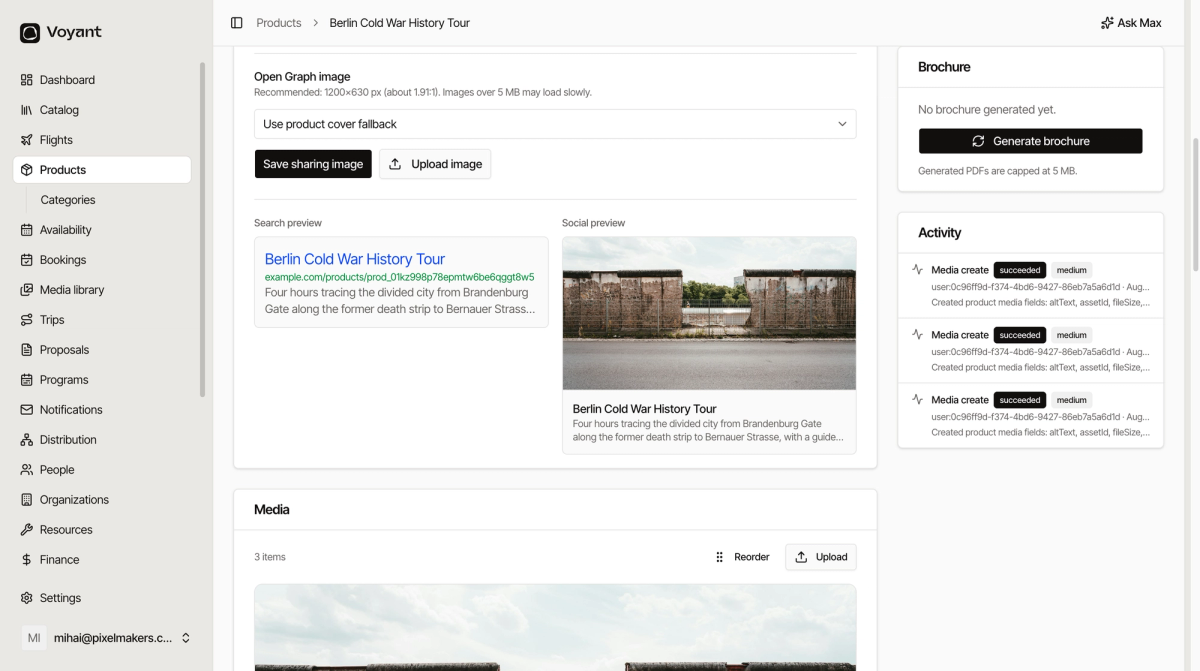
Open the product and find SEO & sharing. Two live previews show you exactly how it will look.
Write the title
Aim for 50 to 60 characters. The counter turns helpful here.
Include what it is and where it is. "Berlin Cold War History Tour" works because someone searching for exactly that will recognise it.
Write the description
Aim for 150 to 160 characters. One clear sentence about what the customer gets.
Write it for a person deciding whether to click, not for a search engine.
The sharing image
By default Voyant uses your main product photo. To use something different, click Upload image under Open Graph image. The recommended size is 1200 by 630 pixels.
- Set SEO title and SEO description.
- Click Save SEO.
- Upload a sharing image if you want one, then click Save sharing image.
Other languages
Use Content locale to switch language, and New locale with Add to start another one. Each language gets its own title and description.
Did this answer your question?
Thanks for your feedback.