



Finding your way around Settings
Twenty-five pages, five jobs. What each group is for, and which ones you actually need to touch.
Click Settings at the bottom of the left menu. The list is long, but you only need a handful of these pages, and most of them once.
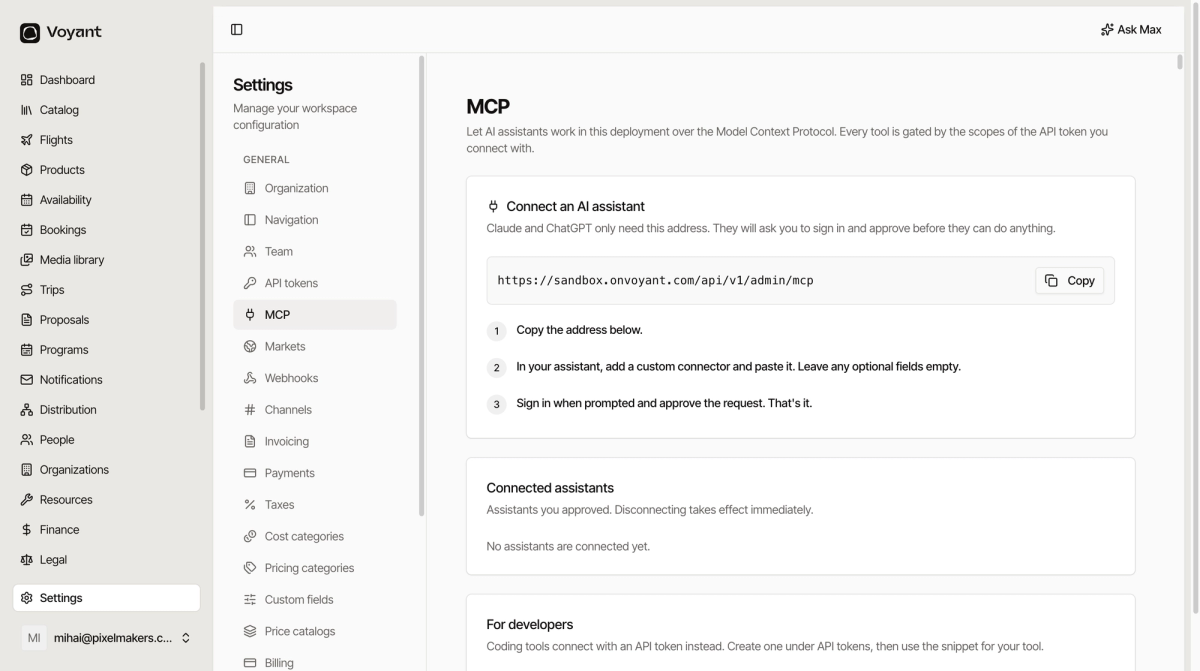
Five jobs
Your business
Organization holds your company details and your branding. It is the single most useful page here, because contracts, invoices and customer emails all read from it. Start there.
Team controls who can sign in. Navigation controls what they see. Max controls what the assistant may do.
How you sell
Channels, Markets, Booking engine, Customer portal and Cookie consent. See Selling settings.
Money
Payments, Invoicing, Taxes, Price catalogs, Pricing categories and Cost categories. See Money settings.
Your catalog
Product families, Product tags and Custom fields, under the PRODUCTS heading at the bottom. See Catalog settings.
Connecting other tools
API tokens, Webhooks and MCP. See Integrations.
Messaging lives with Notifications
Email, SMS and Verify appear in this list, but they are the plumbing behind your notifications rather than settings you configure once. They are covered in Notifications.
What to do first
- Fill in Organization. Everything downstream depends on it.
- Add your team under Team.
- Connect a payment processor under Payments.
- Check Taxes matches how you actually invoice.
The rest can wait until you need it.
Did this answer your question?
Thanks for your feedback.