



Sending email from your own domain
Add your domain, verify the DNS records, and your confirmations arrive from you instead of from a stranger.
Booking confirmations that arrive from an unfamiliar address land in spam. Sending from your own domain is the single biggest thing you can do about that.
Click Settings, then Email.
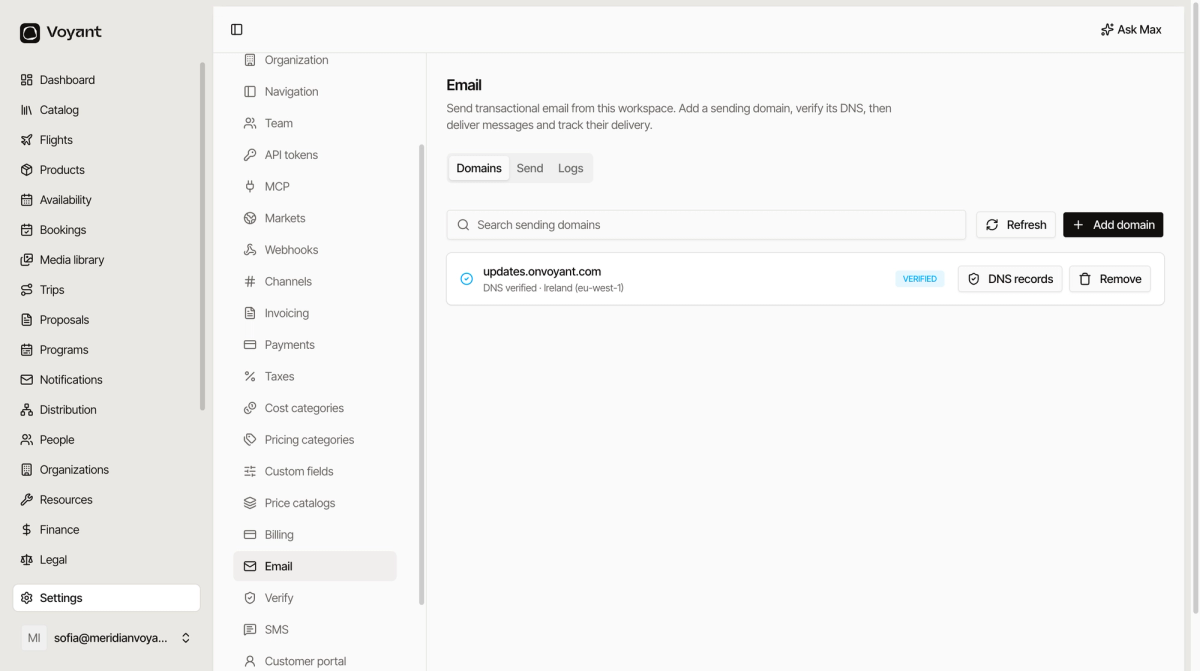
Add a domain
- Click Add domain.
- Enter the domain you want to send from.
- Voyant gives you a set of DNS records.
- Add those records wherever your DNS is managed, or send them to whoever does.
- Wait. Verification is usually minutes, occasionally hours.
Once it reads VERIFIED, mail flows from your address.
Use a subdomain
Send from something like updates.example.com rather than your main domain. If your automated mail ever gets a poor reputation, it does not drag your ordinary business email down with it.
What the DNS records do
They prove to receiving mail servers that you authorised Voyant to send on your behalf. Without them, Gmail and Outlook treat your confirmations as forgeries, which is exactly what they look like.
You do not need to understand the records. You do need to add all of them, and leave them there.
The three tabs
- Domains, what you have added and whether it is verified.
- Send, send a test message.
- Logs, every message and what happened to it.
Logs are where you check a complaint
When a customer says they never got their confirmation, Logs tells you whether it was sent, delivered, bounced or opened. That is a different conversation from guessing.
For a booking-level view, see Preview and deliveries.
Did this answer your question?
Thanks for your feedback.