



Check where a file is used, and delete safely
Before you delete a photo, find out what it is attached to. The details panel tells you.
Deleting a photo that turns out to be the main image on three products is a bad afternoon. The library tells you before you do it.
Where used
Open any file and scroll to the bottom of the details panel.
Where used lists everything the file is attached to. If nothing is using it, it says "This file is not used anywhere".
That is your safety check. A file used nowhere is safe to remove. A file used on a live product is not.
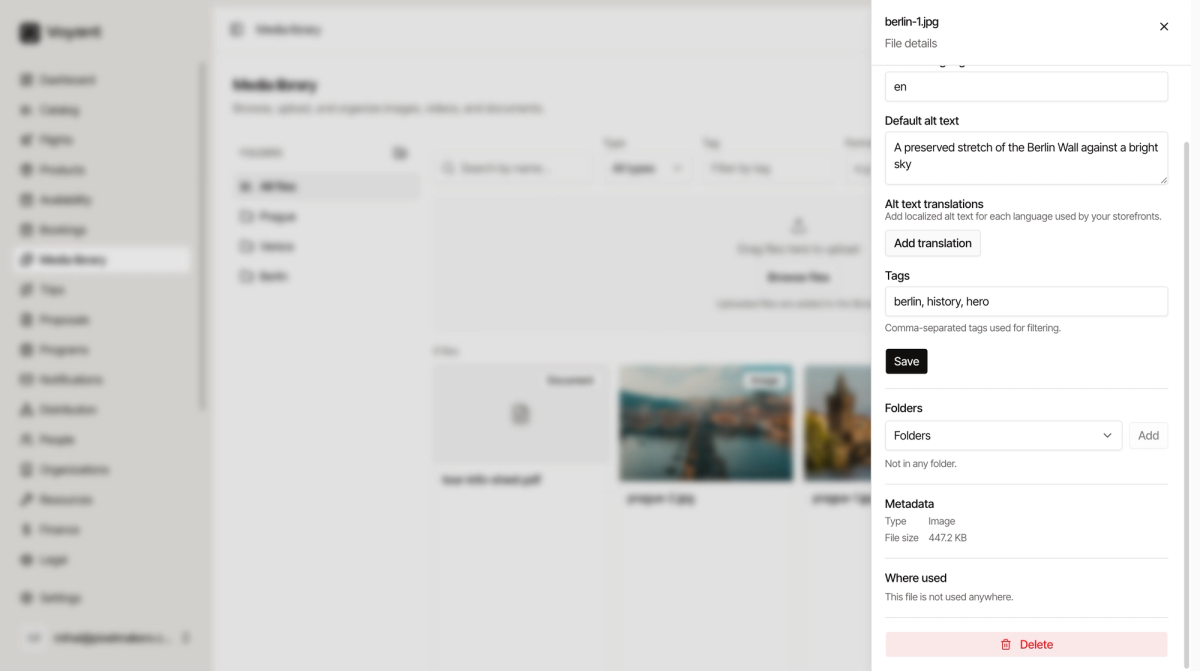
Metadata
Just above it, Type and File size.
File size is worth a glance. Anything over a few megabytes will slow your pages down and is worth replacing with a smaller version.
Delete a file
- Open the file.
- Read Where used.
- If it is safe, click Delete.
- Confirm when asked whether to delete the file permanently.
Deleting is permanent. There is no bin to recover it from.
Replacing rather than deleting
If a photo is simply out of date, it is usually better to upload the new one, swap it on the products that use it, and only then delete the old file.
That way nothing is ever missing an image, even for a minute.
Did this answer your question?
Thanks for your feedback.