



Folders, tags and filters
Three ways to keep a growing library usable. Folders group files, tags label them, and the filters find them.
Nine files need no organising. Nine hundred do. Set the habit early.
Folders
Folders group files the way folders on your computer do. One file sits in a folder, or in none.
- Click the folder icon next to FOLDERS at the top of the left column.
- Type a name.
- Click Create folder.
Click a folder to see only its files. Click All files to come back.
Good folder names are the ones you actually think in: a destination, a season, a supplier. "Berlin", "Venice", "Prague".
To put a file in a folder, open it and use the Folders picker in its details panel.
Tags
Tags are labels, and a file can have as many as you like. That is the difference from folders.
Open a file and type comma-separated tags, such as berlin, history, hero.
Tags work well for things that cut across folders:
herofor your best shot of each destination.winterorsummerfor seasonal imagery.needs-replacingfor anything looking dated.
Filters
Four controls across the top, and they combine.
- Search by name matches the file name.
- Type narrows to Image, Video or Document.
- Tag narrows to one tag.
- Format narrows by file format, such as
image/png.
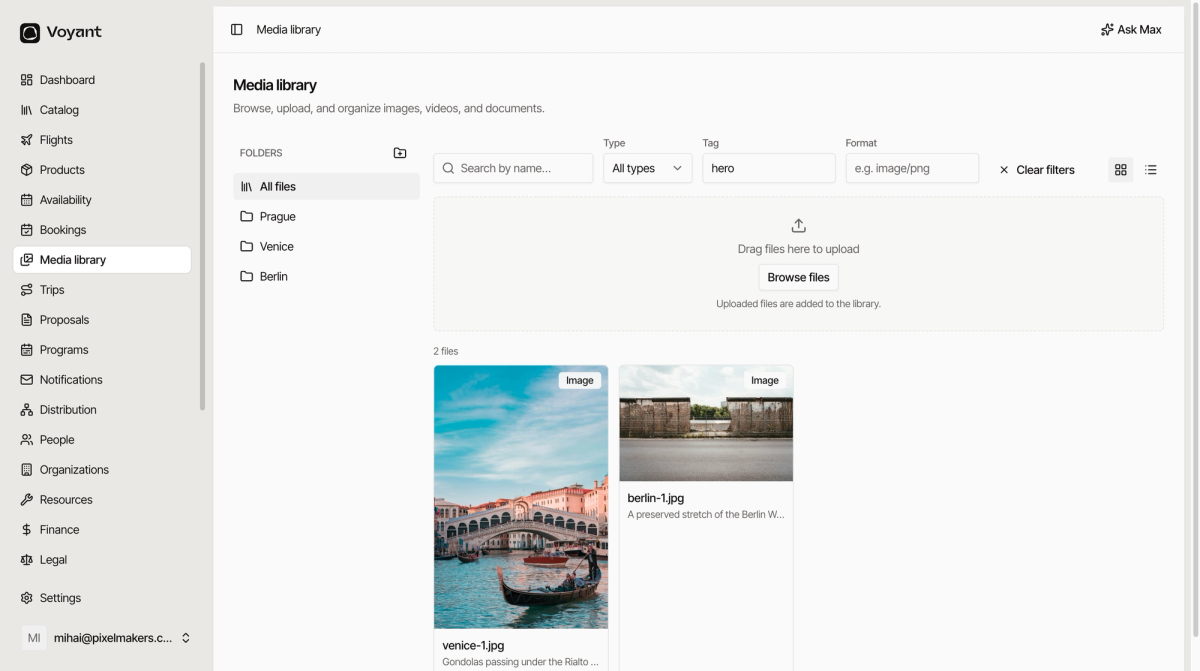
When a filter is active a Clear filters button appears. Click it to see everything again.
Folders or tags?
- Use a folder for where a file belongs. One answer.
- Use a tag for what a file is like. Many answers.
A photo of the Rialto Bridge belongs in the Venice folder and is tagged hero and canal.
Did this answer your question?
Thanks for your feedback.