



Create your first product
Create a product in about a minute. You only need a name to start, and you can fill in the rest afterwards.
Voyant Support
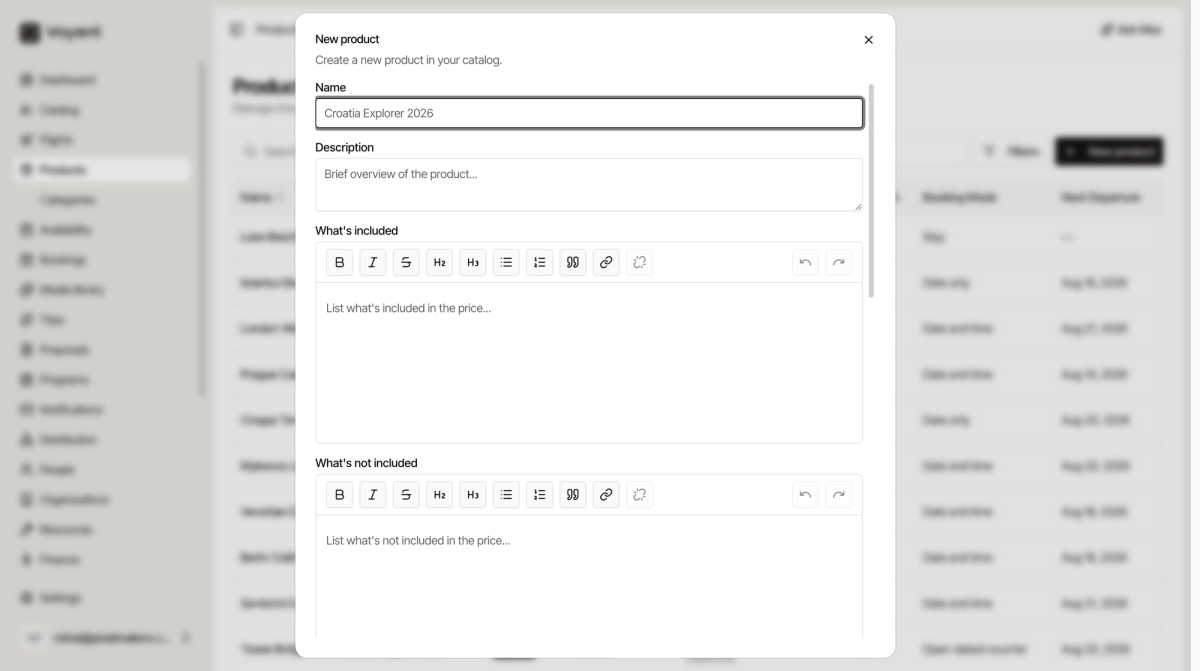
You only need a name to create a product. Everything else can wait.
Steps
- Click Products in the left menu.
- Click New product at the top right.
- Type a Name. Use the name a customer would recognise, such as "Berlin Cold War History Tour".
- Add a short Description. One or two sentences is plenty for now.
- Choose a Booking Mode. This is the one setting worth getting right at the start. See Booking modes.
- Set a Sell Amount if you already know your price.
- Click Create product.
What happens next
Your product is created as a Draft. Draft means customers cannot see or book it yet, so you are free to experiment.
You land on the product page, where you add photos, prices and dates. When it is ready, switch it to Active. See Draft, active and archived.
The fields explained
- What is included and What is not included. These appear on the product page for customers. Being clear here prevents complaints later.
- Terms. Cancellation terms, disclaimers and supplier conditions.
- Tags. Free labels for your own use, such as "Half day" or "Small group".
- Duration (minutes). How long it lasts. A three hour tour is 180.
- Travelers. The default number of people a booking assumes.
- Sell Currency and Sell Amount. What the customer pays.
- Cost Amount. What it costs you. Used to work out your margin.
Did this answer your question?
Thanks for your feedback.